Telegram
Nakama can run as a Telegram bot so you can chat with the same agent from your phone, desktop Telegram, or a shared group.
The mental model is simple:
- Telegram is a channel for Nakama
- The bridge talks to the same Nakama server as the web app
- Pairing links a real Telegram user to your Nakama access
What Telegram supports
With Telegram enabled, users can:
- chat with a Nakama profile in a private chat
- use the bot in Telegram groups
- receive outbound webhook notifications in a group or topic
- keep every conversation attached to the connection's agent
- send text, photos, voice notes, and supported documents
- receive Markdown-style rich replies when Telegram accepts the formatting
Create a bot with a QR code
QR setup connects your Telegram bot without copying a token from BotFather. An organization admin can open Agent → your agent → Channels → Telegram, and select Create with QR.
- Scan the QR code or select Open Telegram to Create Bot.
- If Telegram prompts you, press Start, then create the bot with the supplied button.
- Keep the suggested username so Nakama can match your bot securely.
- Return to Nakama and select Connect bot once the bot is ready.
The channel settings route is /profiles/:profileId/channels/telegram.
The pairing expires after 10 minutes. If it expires or you change the suggested username, cancel and start again.
Who can access the bot?
By default, QR setup uses the shared manager at getnakama.cloud. Its operator can retrieve your managed bot's token and control the bot. Nakama saves your bot token on your own server; normal chats go directly between that server and Telegram. Ending the setup session does not remove the manager's access to the bot.
The manager's source code is public. Operators can inspect and host it themselves, or configure their own manager. Public code does not verify which version a hosted service runs. Use the manual BotFather setup below if you do not want to grant a shared manager access.
Step 1: Create a bot manually with BotFather
For manual setup, create a bot token with @BotFather.
- Open Telegram and search for
@BotFather - Send
/newbot - Choose a display name
- Choose a username that ends with
bot - Copy the bot token
Keep the token secret. Anyone with the token can control your Telegram bot.
Step 2: Save Telegram settings in Nakama
Open Agent → your agent → Channels → Telegram in the Nakama web app, then:
- Paste the bot token
- Check that you opened the profile you want to connect
- Save
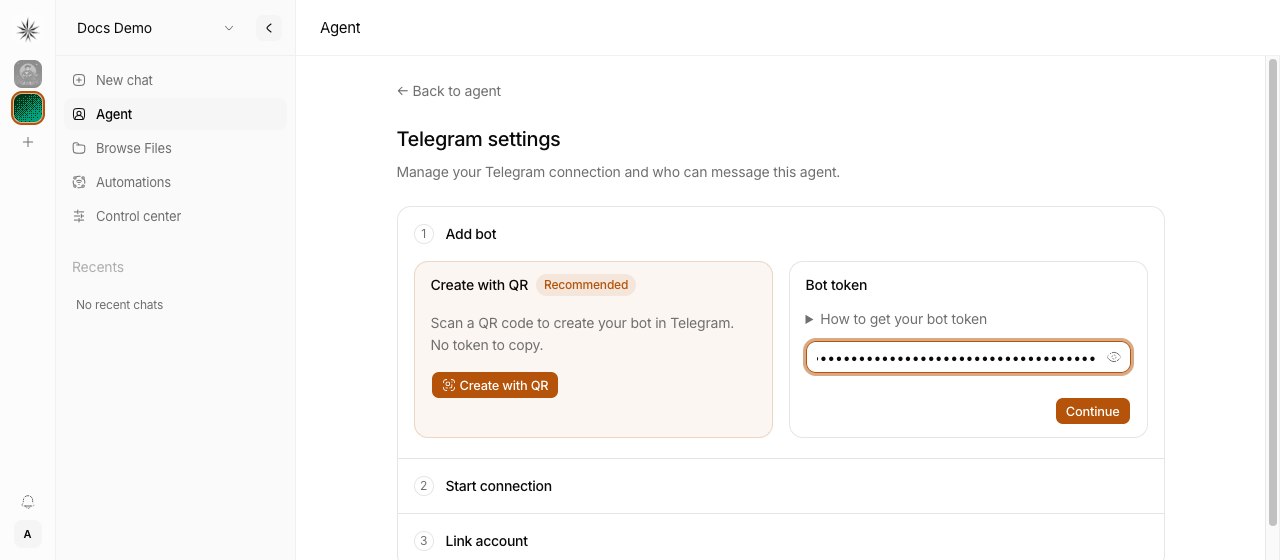
When you save for the first time, Nakama can generate a pairing code for linking your Telegram account.
One bot per profile
Each profile can own one Telegram bot. Its chats, pairing, worker controls, and logs belong only to that profile. The same bot cannot be connected to another profile, even in another organization.
Organization admins and platform admins manage connections. Stop keeps the connection for later. Disconnect removes its credentials, pairings, and channel session/thread data. Disconnect channels before moving a profile to another organization. Cloning or exporting a profile does not copy its connections.
Existing connections move automatically when Nakama can identify their owner. If ownership is unclear, it stays stopped until it is claimed for an agent through the API (POST /v1/settings/channel-legacy/claim). The dashboard has no claim control. Only a platform admin can claim an installation-wide connection.
Step 3: Enable audio transcription for voice chat
Telegram voice notes and audio files are turned into text before they are sent to the agent.
To enable that:
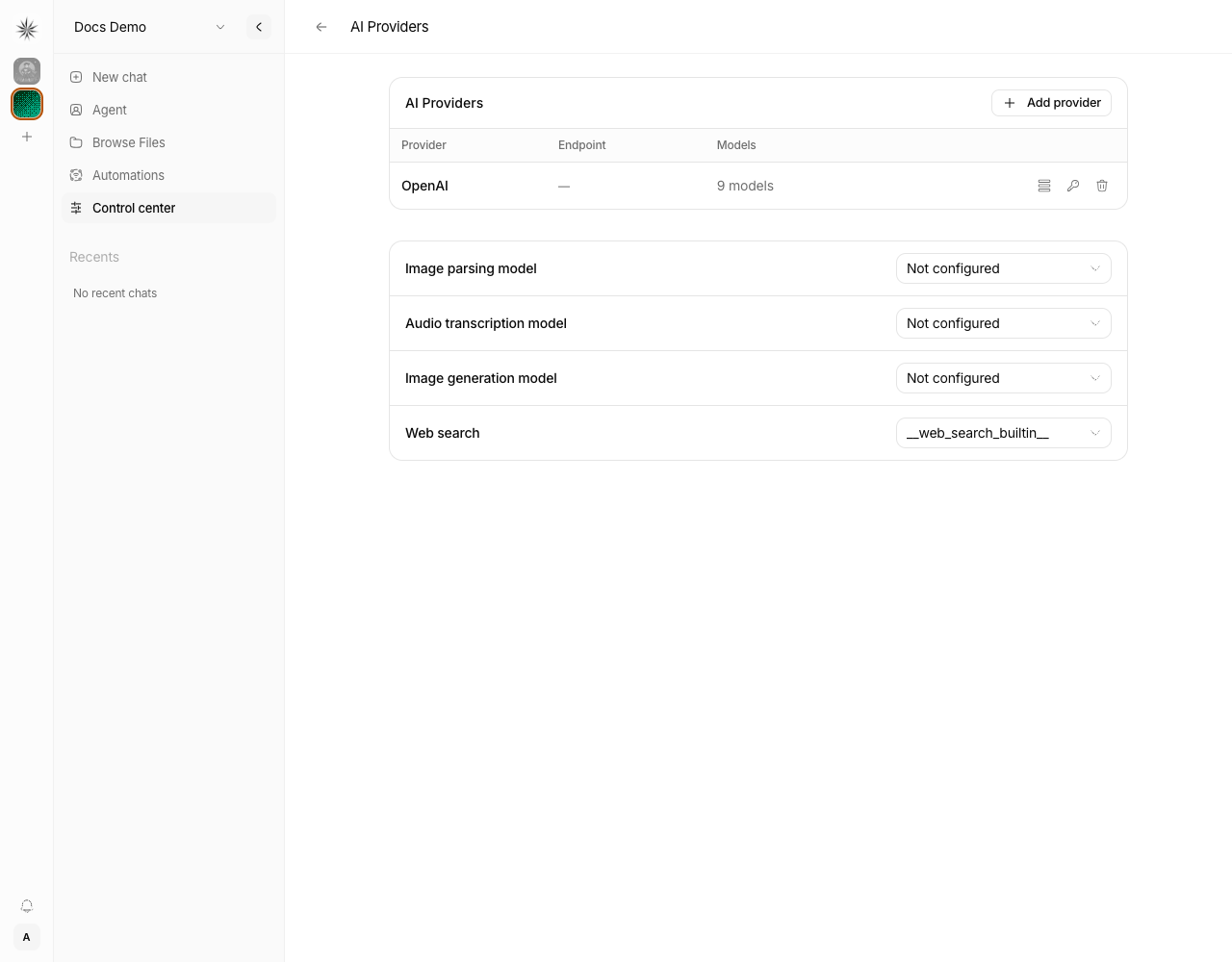
- Open Control center → Agent tools → AI Providers in the Nakama web app
- Add an OpenAI provider if you have not added one yet
- In Audio transcription model, choose an OpenAI model such as Whisper
- Wait for the
Savedconfirmation
If no OpenAI provider is connected, the audio transcription setting stays unavailable. Without this setting, text chat still works, but Telegram audio messages will not be transcribed for the agent.
Step 4: Pair your Telegram account
Pairing is required so random Telegram users cannot talk to your internal Nakama bot.
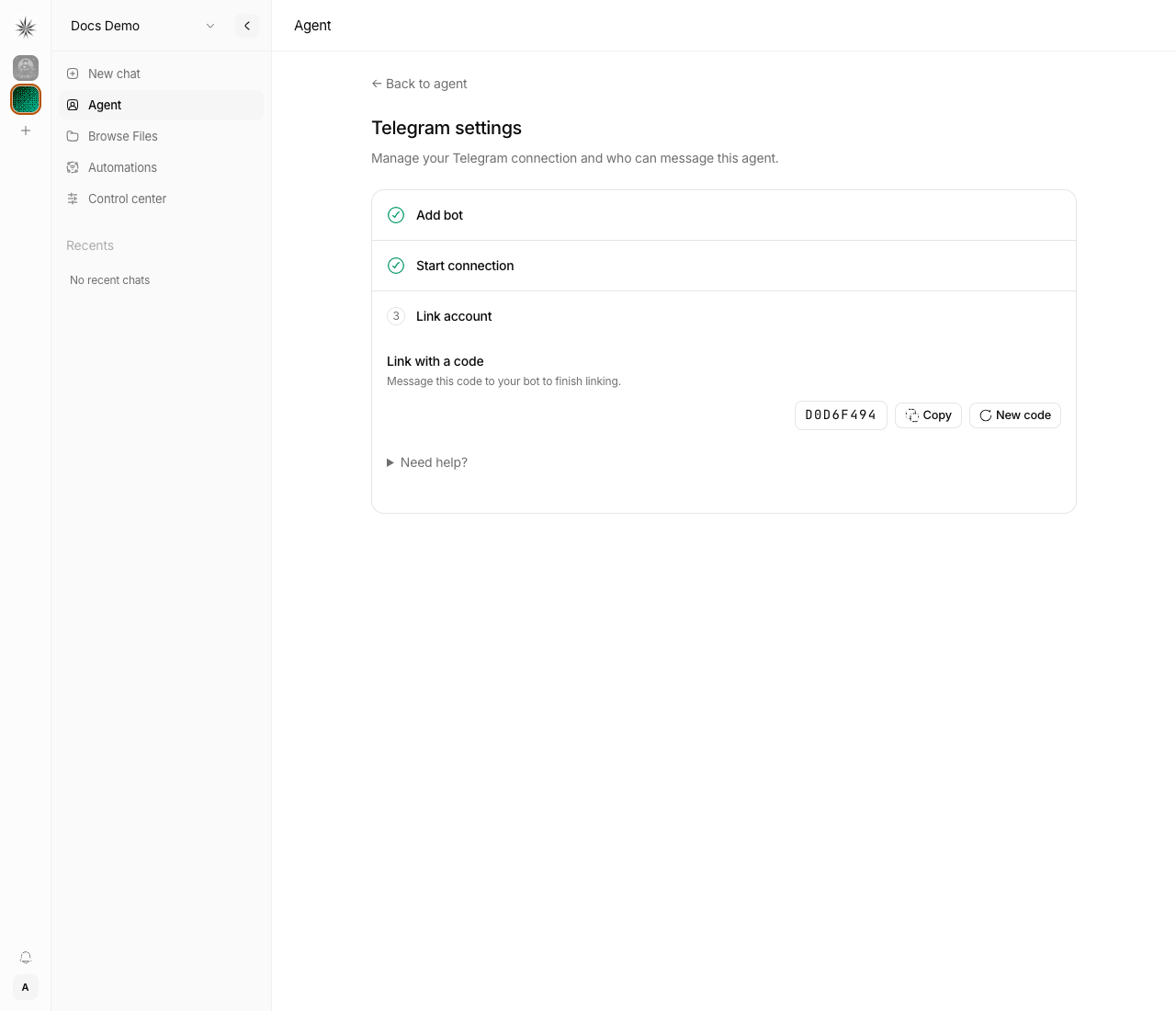
- Copy the pairing code from Agent → your agent → Channels → Telegram
- Start a private chat with your bot
- Send the pairing code as a normal text message
After a successful match, that Telegram user is linked and the pairing code is cleared.
Why pairing exists
The bot token only connects Nakama to Telegram.
Pairing connects your Telegram user account to Nakama permissions.
That means Nakama can:
- identify which Telegram user is talking
- allow private chat safely
- apply the right org and profile access
Step 5: Start the Telegram bridge
Select Start in the profile's Telegram connection. Keep the Nakama server running. Starting or stopping this worker does not affect another profile's connections.
Optional: Direct allowlist instead of pairing
Nakama also supports allowlisting Telegram user IDs directly.
This is useful when you want to pre-authorize specific users without the one-time pairing flow.
To add users from the dashboard:
- Open Agent → your agent → Channels → Telegram
- In Allowed users, click Manage
- Paste a numeric Telegram user ID and click Add
To paste raw Telegram update JSON instead:
- Open Agent → your agent → Channels → Telegram
- In Allowed users, click Manage
- Click Import JSON
- Paste the raw Telegram update JSON
- Click Add user
Use the Telegram user's from.id, not their @username.
When you paste raw JSON, Nakama reads message.from.id and shows the username when it is present.
For example, in this Telegram update payload:
{
  "from": {
    "id": 213193924,
    "username": "ahmadrosid"
  }
}
The allowed user ID is:
213193924Step 6: Configure Telegram privacy mode for groups
Telegram bots start with Group Privacy enabled. This is the most common reason a bot seems fine in private chat but not in groups.
If you want mention-based group usage to work reliably:
- Open
@BotFather - Open your bot settings
- Disable Group Privacy
- Remove the bot from the Telegram group
- Add it back again
That re-add step matters because Telegram may keep the old delivery behavior for bots already in the group.
Rotating the bot token
After you replace a Telegram bot token, restart this profile's Telegram worker. Long-lived workers keep the token they loaded at startup, so saving alone does not rotate the running connection.
Running the worker directly
The dashboard manages the worker scope for you. For a direct local run, set both the organization and profile scope before starting it:
NAKAMA_CHANNEL_ORG_ID="org_your_org" \
NAKAMA_CHANNEL_PROFILE_ID="your-profile" \
bun run dev:telegram
The profile must already have a saved Telegram connection in the same Nakama config directory. The worker also needs the normal NAKAMA_SERVER_URL and NAKAMA_CONFIG_DIR settings when the server or config root are not the local defaults.
Next steps
- Chat behavior & commands — how the bot behaves in private chats and groups
- Outbound notifications — send webhook notifications into Telegram
- Troubleshooting — debug the bridge worker and common issues
- Quickstart
- Discord