Artifacts and files
Artifacts are the files your agent produces: reports, scripts, generated images, Word documents, transcripts. The agent writes them; you read, edit, and publish them from Browse Files → Artifacts in the dashboard.
This page covers the dashboard side. For how an agent saves a file in the first place, see Artifact saves.
Browse Files
Open Chat → Browse Files. The Files page is the primary surface for files saved in the selected profile. It has three views:
- All files browses the profile workspace one folder at a time. It includes artifacts, soul and memory files, custom tools, and other profile data. Pinned workspace files appear first.
- Artifacts lists saved output in folders. Search, type filters, and list or grid view work in this view.
- Knowledge manages documents that
knowledge_base_searchcan use, including organization documents attached to the profile. Upload and manage knowledge-base documents here.
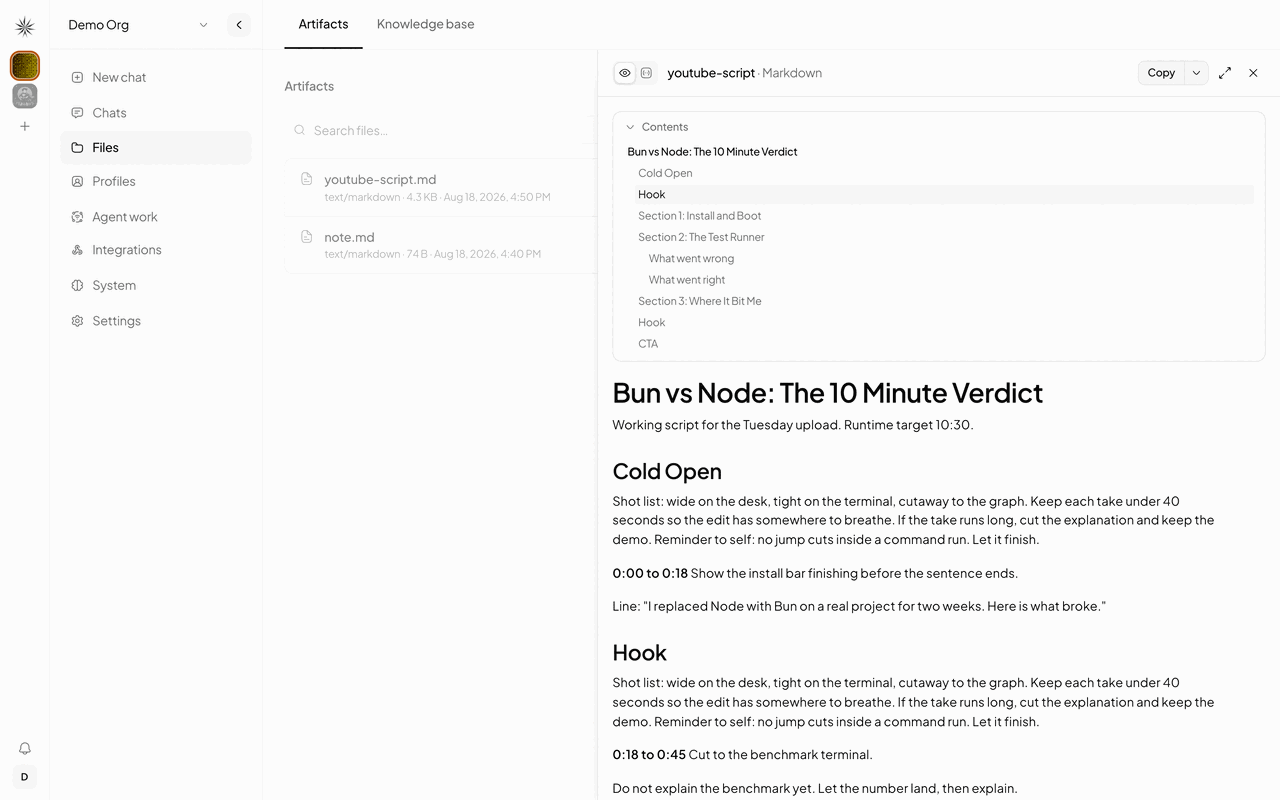
The page follows your active chat profile. If that profile isn't available, it selects the organization default. The Files page is restricted to platform administrators; other roles can't browse or manage workspace files, artifacts, or knowledge documents from this surface.
All files and Artifacts show one folder at a time. Artifact search searches all artifacts and shows full paths. The dashboard initially renders 30 folders and files, then Show more reveals another 30. Its API request returns the full matching metadata list rather than sending limit or offset; an API caller that supplies limit must use 1–100 with a non-negative offset.
The Knowledge view accepts TXT, Markdown, CSV, and PDF files up to 20 MB each. Duplicate filenames require you to skip or replace the existing document. A platform administrator can attach shared organization documents to a profile; deleting an attached organization document detaches it rather than deleting the organization's source file.
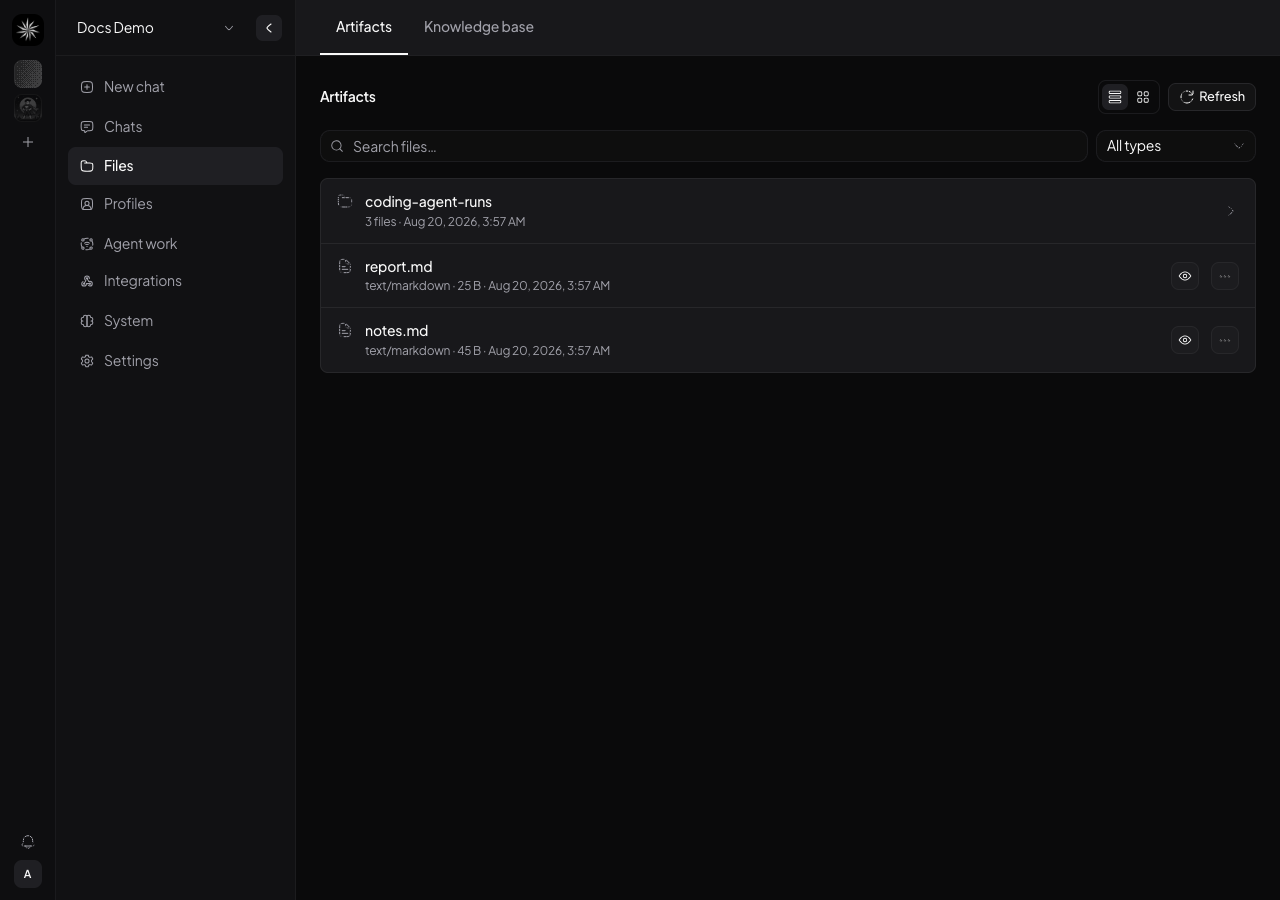
Each file shows its inferred type, size, and last modified time. Nakama infers type from the extension. Files with unknown extensions are checked for valid UTF-8 when previewed, so a Dockerfile or notes.abc can preview as text instead of being treated as binary.
Preview files
The preview panel renders content by type:
| Type | Preview |
|---|---|
| Markdown | Rendered, with a toggle to the raw source |
| HTML | Rendered in a sandboxed frame |
| Images | Inline, with a download action |
| Video | MP4, WebM, MOV, and OGV playback |
| Inline document preview | |
| Code | Syntax highlighted by extension |
| Text, CSV, and logs | Plain or delimited-table preview |
Word (.docx) | Converted to Markdown for reading |
The All files view loads raw images, video, PDF, and text previews only when the file is 10 MB or smaller. Word documents are converted on the server, so their preview doesn't use the raw-file cap. Files above the cap or in an unsupported format offer Download file instead of a preview.
Table of contents for markdown
A markdown artifact with two or more headings gets a collapsible Contents list above the rendered body, built from its h1 to h3 headings. Clicking an entry scrolls to that heading.
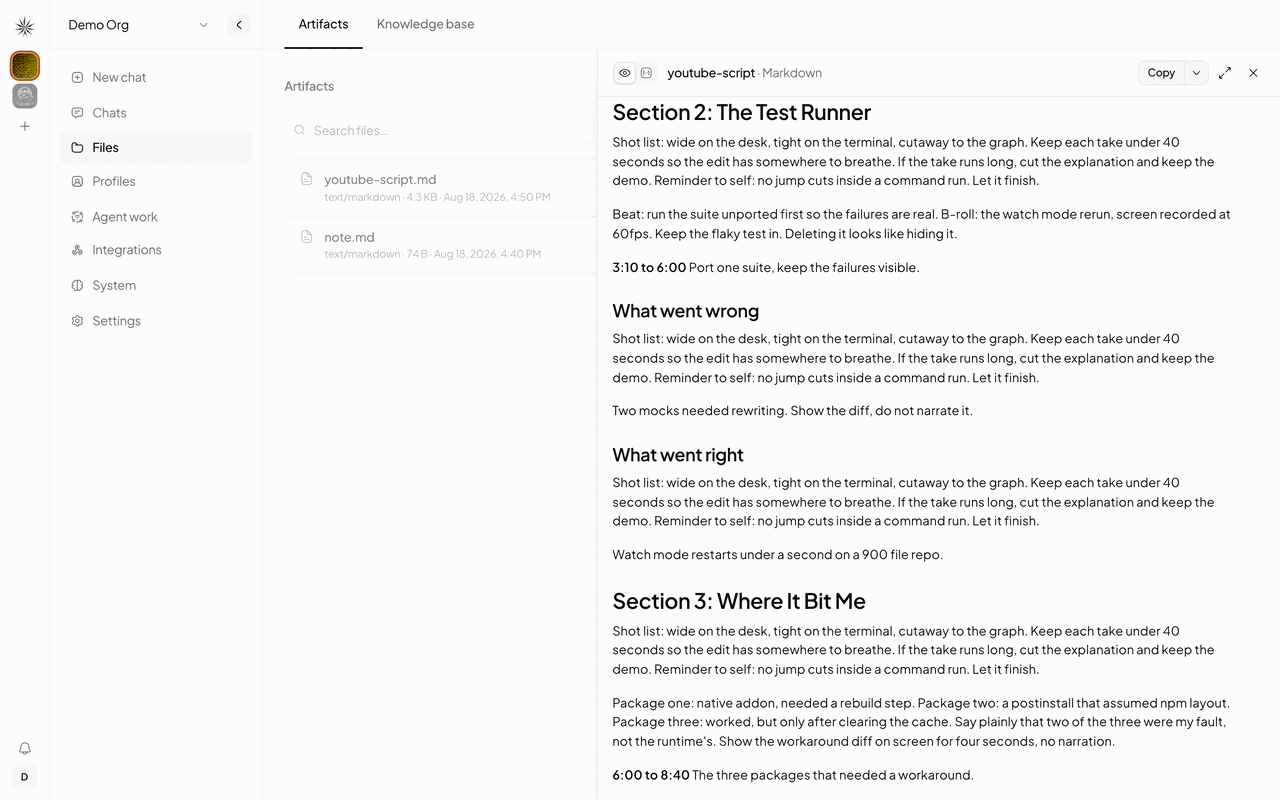
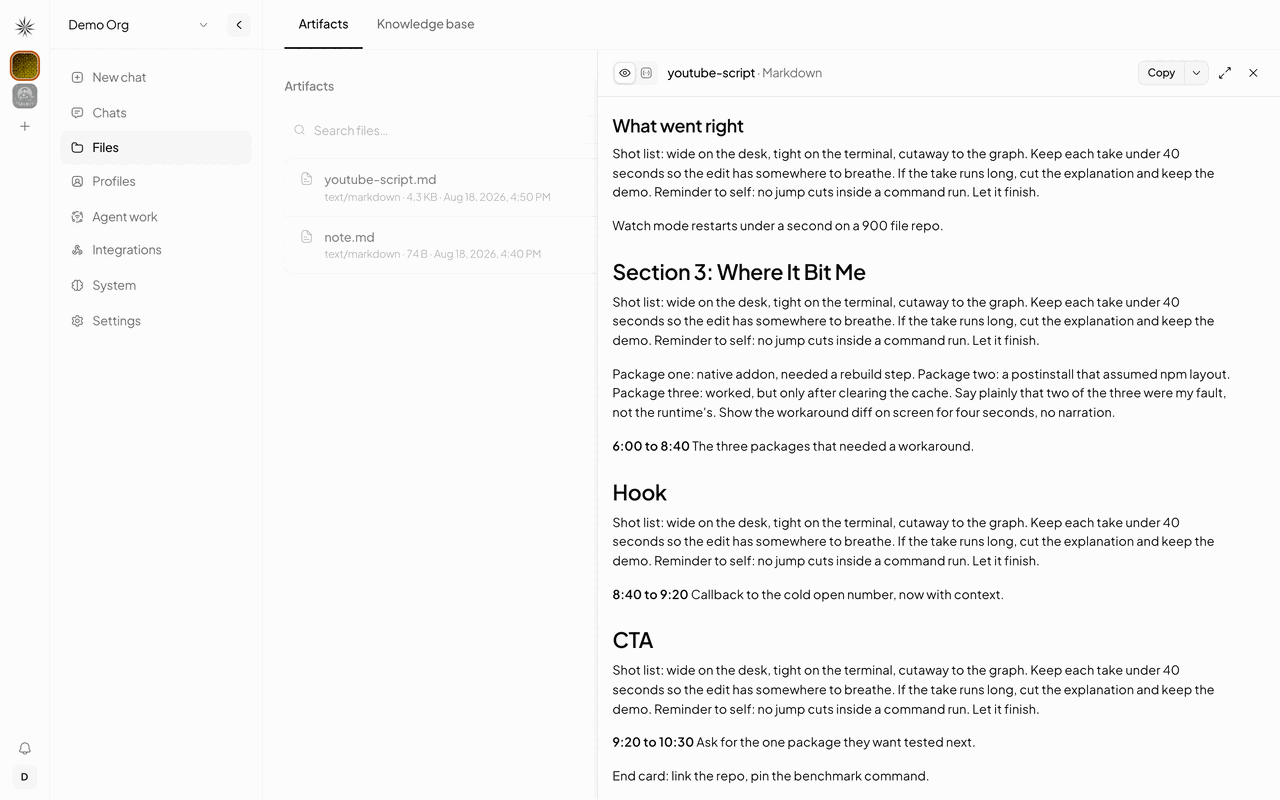
Entries are matched back to their heading by text plus occurrence, so a script that repeats "Hook" jumps to the right one rather than the first. Clicking the second Hook below lands on the 8:40 beat, not the 0:18 one.
Below two headings nothing renders, so a one-paragraph note keeps the preview it has today.
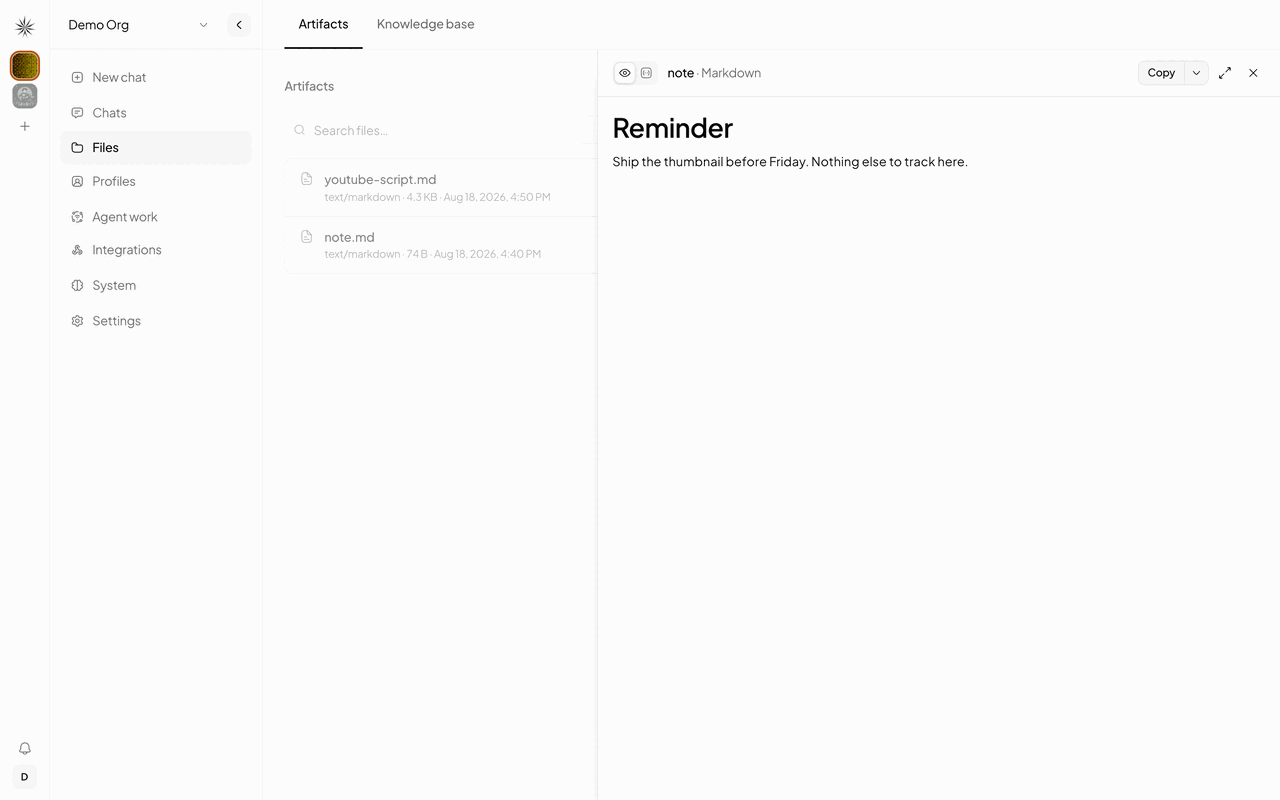
The list lives in the shared artifact body, so the chat panel, the Files preview, and the public share page all show it.
Edit an artifact
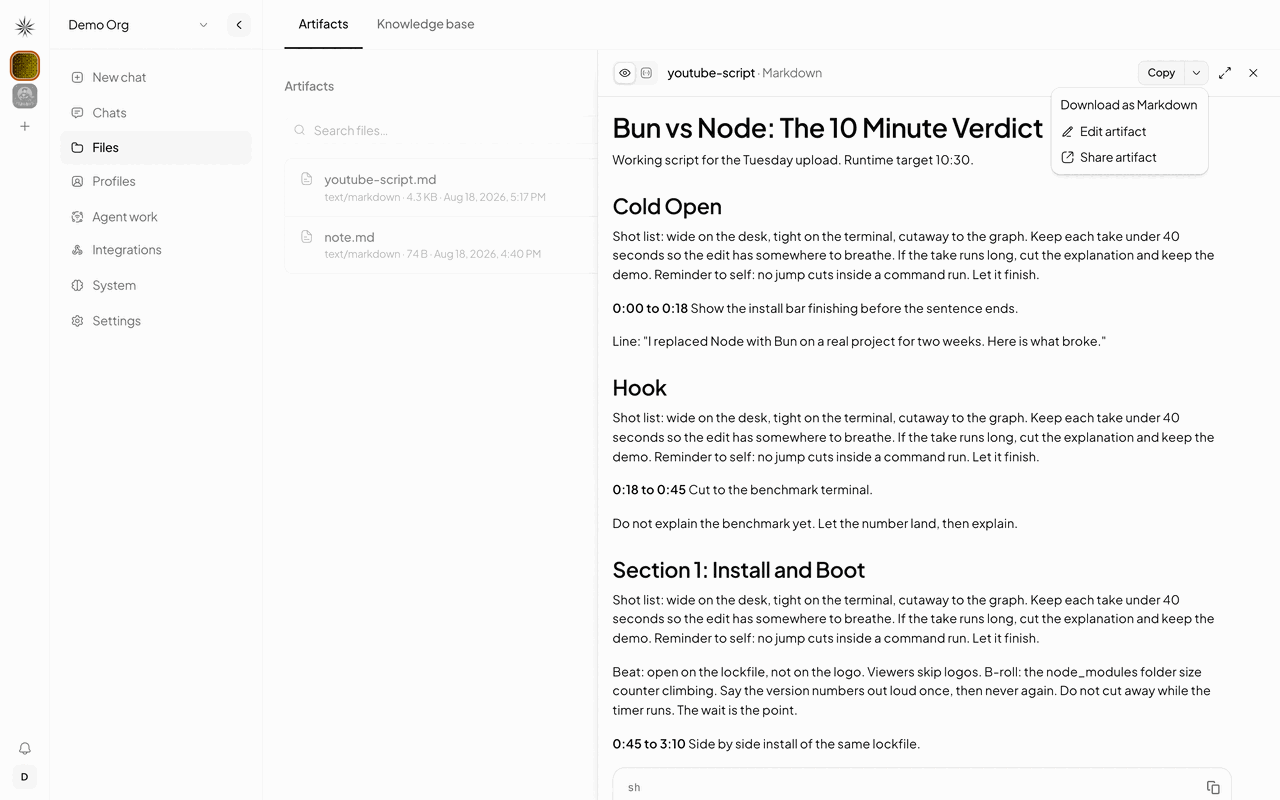
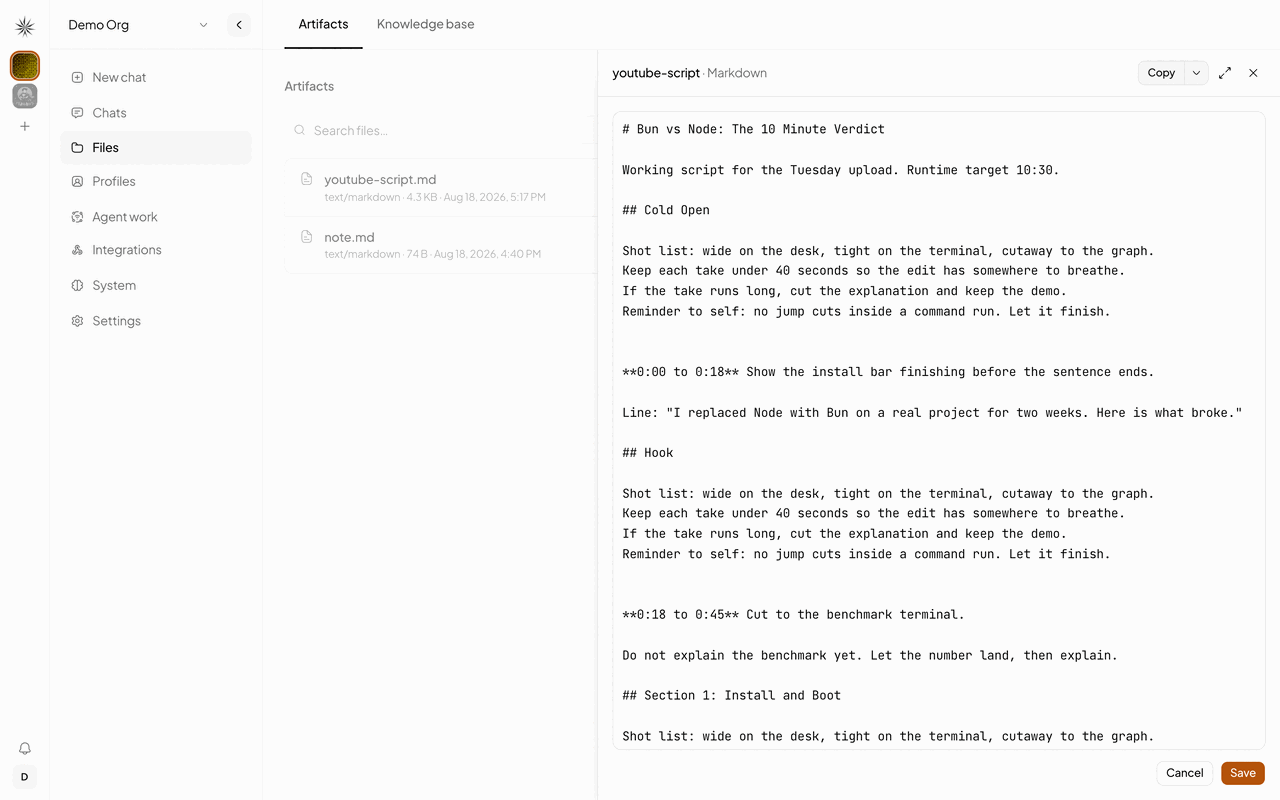
An artifact's actions menu provides Rename, Download, Delete, and artifact sharing actions. The artifact preview also lets non-viewers edit Markdown and delimited spreadsheet source in place. Editing is limited to those source formats; a .docx can't be overwritten with the Markdown produced by its preview.
Saving an edit returns to the preview and refreshes its timestamp. A failed save keeps the editor contents open so you can retry.
The Files management page and its listing, rename, delete, and knowledge controls are platform-admin-only. The separate artifact preview editor requires a non-viewer role when opened from an authorized chat attachment.
Authorized active-organization members can still read artifact content through chat attachments and the content API even though they can't open the Files management page.
Publish a public share
Share artifact publishes the file at a tokenized URL that needs no login, and gives you a link to copy.
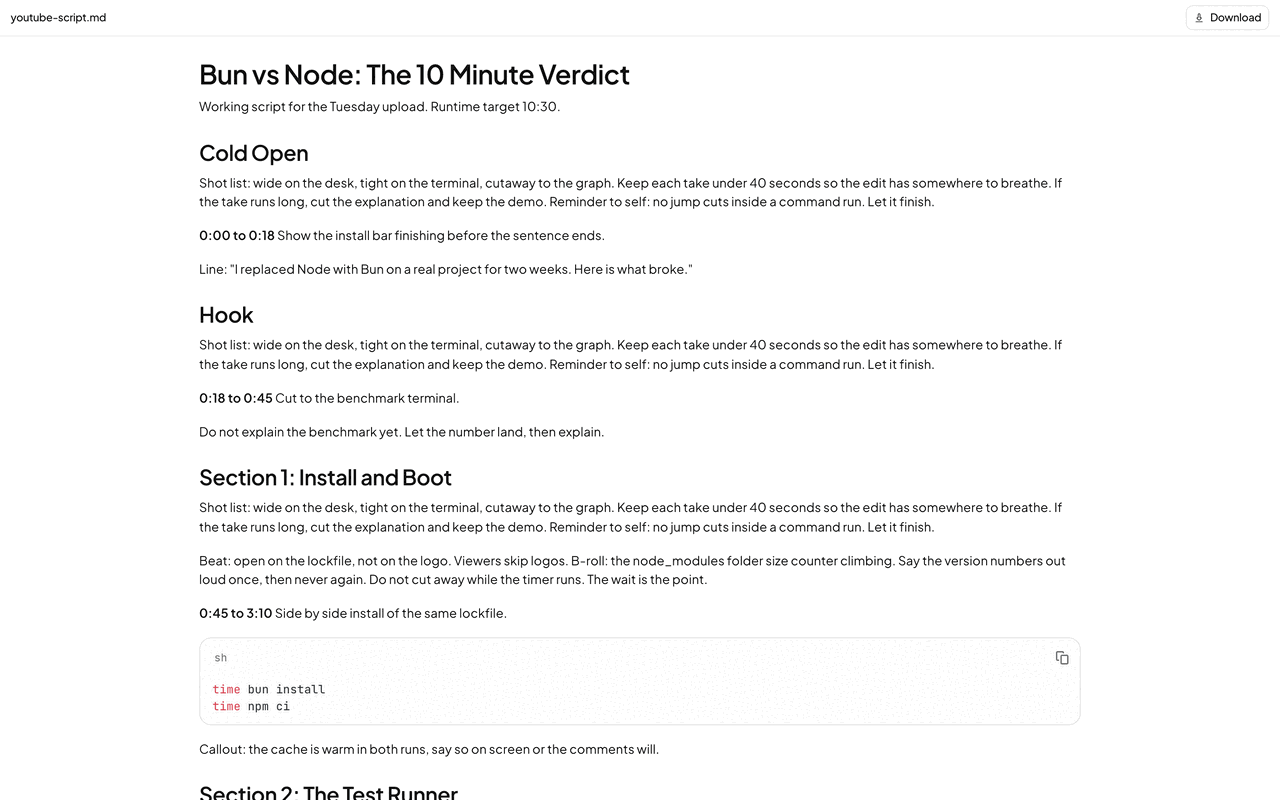
A published share serves a snapshot taken at publish time, not the live file. Saving an artifact edit refreshes the snapshot. An agent rewrite does not; use Update snapshot to catch up the published copy.
HTML and SVG artifacts are never served inline on the app origin, so a published page cannot run script against your session.
Where the files live
~/.nakama/orgs/{orgId}/profiles/{profileId}/artifacts/See Profiles for the rest of the workspace layout, and Backup and restore for what an export carries.
API
| Method | Path |
|---|---|
GET | /v1/profiles/:profileId/artifacts |
GET | /v1/profiles/:profileId/artifacts/content?path= |
PUT | /v1/profiles/:profileId/artifacts/content?path= |
POST | /v1/profiles/:profileId/artifacts/shares |
GET | /v1/profiles/:profileId/artifacts/shares/status |
DELETE | /v1/profiles/:profileId/artifacts/shares/:shareId |
Artifact limits and channels
Telegram and Discord publish share links after successful artifact saves. Discord also sends a supported native attachment up to 8 MB; an attachment that's too large or unsupported keeps the share link. Telegram native document attachments are capped at 5 MB. WhatsApp sends newly saved non-scratch files as native documents up to 16 MB instead of posting share links; a natural-language retry sends the whole deliverable set, while /attach sends only the most recent deliverable file. Files over the WhatsApp cap receive a download instruction instead of an attachment.
Only successful artifact saves enter channel delivery. Delivery failures don't delete the saved artifact.
See Telegram, Discord, and WhatsApp for channel-specific flows.