MCP Servers
An MCP server is an external tool provider. Nakama acts as an MCP client: it connects to servers you register, caches their tools, and exposes them in chat like builtin tools.
- Register a server once (platform admin)
- Assign it to profiles that need it
- Tools appear at chat time, namespaced as
{serverName}__{toolName}
Use MCP when you need product-specific or internal capabilities — databases, SaaS APIs, local binaries — without writing custom Nakama code. For capabilities every profile should have by default, use a builtin tool or bundled skill instead.
Transports
| Transport | When to use | Config |
|---|---|---|
http | Remote endpoint (SaaS MCP, shared service) | url, optional headers |
stdio | Local command (npx package, binary) | command, optional args, env |
HTTP — Nakama opens a streamable HTTP connection and reuses it across turns.
{
  "url": "https://mcp.example.com/mcp",
  "headers": { "Authorization": "Bearer my-token" }
}
stdio — Nakama spawns one process per profile, with cwd set to that profile's soul directory (~/.nakama/orgs/{orgId}/profiles/{profileId}/). HTTP servers share one connection across profiles.
{
  "command": "npx",
  "args": ["-y", "some-mcp-package"],
  "env": { "API_KEY": "secret-value" }
}
Tool naming and lifecycle
MCP tools are namespaced as {serverName}__{toolName} to avoid collisions with builtins and other servers (e.g. github__read_file). Invalid characters become _; duplicates get a numeric suffix.
Nakama caches the tool list at connect time — it is not re-fetched on every chat turn.
| State | Meaning |
|---|---|
connected | Active connection and cached tools |
disconnected | No connection; tools stale or empty |
needs_auth | Waiting for a browser sign-in, shown as Sign-in required with a Sign in button |
error | Last connect/sync failed — see lastError |
- Connect — opens the client, fetches and caches tools
- Sync — reconnects and refreshes the cache (after the server adds/removes tools)
- Startup — Nakama auto-reconnects enabled HTTP servers; failures log a warning and set status to
error. Command servers connect when a profile calls a tool
Current chat context
An MCP tool can request images and verified WhatsApp sender details from the current message. Add an optional nakamaContext property to its input schema:
{
  "type": "object",
  "properties": {
    "query": { "type": "string" },
    "nakamaContext": {
      "type": "object",
      "x-nakama-context": "current-chat"
    }
  }
}
Nakama hides this property from the model and adds it to the MCP call. nakamaContext.images contains current-message images as { "data": "<base64>", "mediaType": "image/png" }. nakamaContext.whatsapp contains chat and sender IDs, group status, and fromMe. Nakama accepts this sender context only from its authenticated WhatsApp worker. This sends that data to the MCP server.
Setup
Platform admins manage servers in Control center → Agent tools → MCP and assign them by opening Agent, selecting a profile, and choosing MCP. Registering a server does not assign it to any profile.
Add a server
- Open Control center → Agent tools → MCP, then select Add server
- Pick the server type: HTTP (a URL, with an API key header if it needs one), Sign-in (a URL that authenticates through your browser) or Command (a local process), then enter the name and config
- Test connection, then save — enabled servers connect immediately
Assign to a profile
- Open Agent and select a profile
- In the MCP tab, click Add MCP server, then pick an existing server or create a new one
- Unassigning removes tools from the next chat
Delete a server
A platform admin can delete a custom MCP server even when profiles use it. Nakama disconnects the server and removes its assignment from every profile. Its tools stop appearing in later chats.
- Open Control center → Agent tools → MCP and select Delete on the server
- Review the number of assigned profiles in the dialog
- Select Force delete to delete the server and remove those assignments
Preinstalled servers cannot be deleted.
Example: Exa web search
Nakama ships a preinstalled exa server (https://mcp.exa.ai/mcp) with web_search_exa and web_fetch_exa. The shared free tier can rate-limit; add your own Exa API key under Headers:
- Key:
x-api-key - Value: your API key
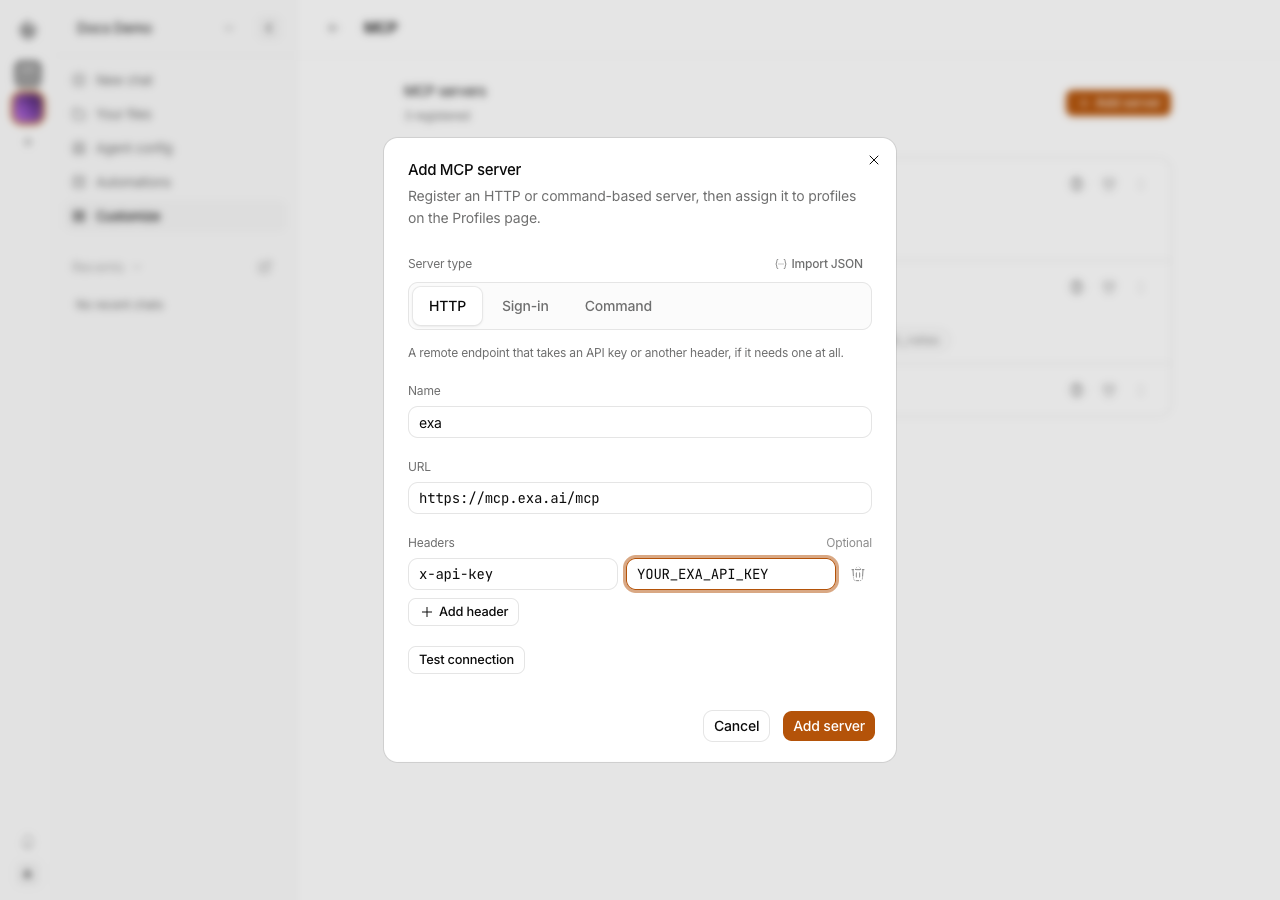
{
  "mcpServers": {
    "exa": {
      "url": "https://mcp.exa.ai/mcp",
      "headers": { "x-api-key": "YOUR_EXA_API_KEY" }
    }
  }
}
Tools appear as exa__web_search_exa and exa__web_fetch_exa.
Example: Firecrawl
Nakama ships a preinstalled firecrawl server (https://mcp.firecrawl.dev/v2/mcp) with no API key. Assign it from Agent when a profile needs JS-rendered public pages.
Keyless tools appear as firecrawl__firecrawl_search, firecrawl__firecrawl_scrape, and firecrawl__firecrawl_parse. Use scrape for JS-heavy public pages. Search is extra surface next to Exa and builtin web_search. Hosted parse is not for files in the profile workspace — use extract_document_text.
Firecrawl Cloud fetches the URL. Unlike web_fetch, the page is processed off the Nakama host. Keyless usage shares a daily cap on the host's public IP across every assigned profile, including automations and Telegram / WhatsApp / Discord.
Keyless MCP does not include interact, crawl, or map. For login walls, forms, and clicks, use the agent-browser skill.
To raise limits or unlock crawl / interact / map, add a Firecrawl API key under Headers, then Reconnect or Sync tools:
- Key:
Authorization - Value:
Bearer YOUR_FIRECRAWL_API_KEY
That header is shared by every profile assigned to this server. After sync, keyed tools are available on all of them until you unassign or rotate the header.
{
  "mcpServers": {
    "firecrawl": {
      "url": "https://mcp.firecrawl.dev/v2/mcp",
      "headers": { "Authorization": "Bearer YOUR_FIRECRAWL_API_KEY" }
    }
  }
}
Servers that sign in with a browser
Hosted MCP servers such as Notion, Linear or Sentry do not take an API key header. They use OAuth, the same as any other app you sign in to, so Nakama needs one trip through your browser before it can connect.
- Pick the Sign-in type and enter the name and URL. There is no header field: the provider issues the credential. Test connection is optional here and reports the sign-in requirement as the expected answer, in green
- Add and sign in opens a dialog with the provider's sign-in page. Click it, and the page opens in a new tab
- Approve the access the provider asks for
- The provider sends you back to Nakama, which finishes the connection and caches the tools. The dialog closes itself and the row flips to connected
Close the dialog with Finish later and nothing is lost: the row stays as Sign-in required with a Sign in button that starts the same flow again.
The provider's tokens are stored with the server, so Nakama can reconnect across restarts without asking again. Connect starts a fresh sign-in whenever the grant is revoked or expires.
Two things this needs:
- A reachable public URL. The provider redirects your browser back to
{your Nakama URL}/v1/mcp/oauth/callback/{serverId}, so set the public URL under Control center → Workspace → Settings → Public web URL (orNAKAMA_WEB_PUBLIC_URL) for anything other than a local install - Dynamic client registration, which Nakama uses to register itself with the provider.
Servers that instead hand you a
client_idandclient_secretto paste in are not supported yet
Like a header, the grant belongs to the server record, so every profile assigned to that server acts as the account that signed in. Editing the URL drops the grant, because it belongs to that one endpoint.
Import from an existing config
Use Import JSON or paste a Cursor-style mcpServers block onto the form. A bare server object (top-level command or url) also works — the first entry fills the form for review.
Secrets
HTTP headers and stdio env values are secrets:
- API and dashboard return them as
•••••••• - Leave a field blank when editing to keep the stored value
- Test connection merges your input with stored secrets, so you can test without re-entering them
Config reference
HTTP
| Field | Type | Required | Notes |
|---|---|---|---|
url | string | Yes | Valid URL |
headers | Record<string, string> | No | Auth or custom headers |
stdio
| Field | Type | Required | Notes |
|---|---|---|---|
command | string | Yes | Executable on PATH or absolute path |
args | string[] | No | Command arguments |
env | Record<string, string> | No | Child process environment |
Permissions
MCP management is platform-admin only (same as profiles, builtins, and skills).
| Actor | Manage MCP | Use MCP tools in chat |
|---|---|---|
| Platform admin | Yes | Yes |
| Org admin / member | No | Yes |
| Org viewer | No | No |
Troubleshooting
errorstatus — checklastError: wrong URL, missingcommand, unreachable host, or expired credentialsneeds_authstatus / "Sign-in required" — sign-in is incomplete or needs renewal. Click Sign in on the row for a fresh link, and check the public URL matches the origin you open the dashboard on- No tools discovered — server connected but returned zero tools; fix server-side config, then Sync tools
- "not connected" on tool call — connection dropped; reconnect. For stdio, confirm the command is on PATH
- Exa rate limit — add an
x-api-keyheader with your Exa API key, then reconnect - Firecrawl rate limit — add an
Authorizationheader withBearerplus your Firecrawl API key, then reconnect. This also unlocks crawl / interact / map for every assigned profile - Unexpected tool name — names are sanitized to
a-zA-Z0-9_-;tools.liston serveruser.tolariabecomesuser_tolaria__tools_list
Related
- Builtin tools — tools that ship with Nakama
- Agent browser — login walls and interactive pages
- Profiles — designing bots and tool access
- Multi-tenancy — org roles and admin boundaries