Composio
Composio lets an agent act inside apps you already use. Connect your Gmail once and the agent can read and send mail for you. The same works for Slack, GitHub, Notion, and around 200 other apps.
You connect your own account, and nobody else's. Your colleague connects theirs. An agent uses the account of whoever is talking to it.
What you need first
- A Composio account. Sign up at composio.dev, it is free to start.
- The org admin role in Nakama for steps 1, 2, 3 and 5 below. Any member can do step 4 for their own account.
You do not need to set anything up inside Composio beyond creating the account. Nakama does the rest for you.
Setup
1. Get your Composio API key. This is the only thing you fetch from Composio, so here is the exact path:
- Open dashboard.composio.dev and sign in.
- Click Settings in the left sidebar.
- Open Project Settings.
- Open API Keys.
- Copy the key.
Take the project API key. Composio also has an MCP consumer key that starts with ck_, found under AI Clients. That one looks like a key and does not work here, so if Nakama rejects what you pasted, this is usually why.
2. Paste it into Nakama. As a platform admin, open Control center → Integrations → Composio, paste the key in the Project API key box, and press Save. The project key is shared by every organization on this installation.
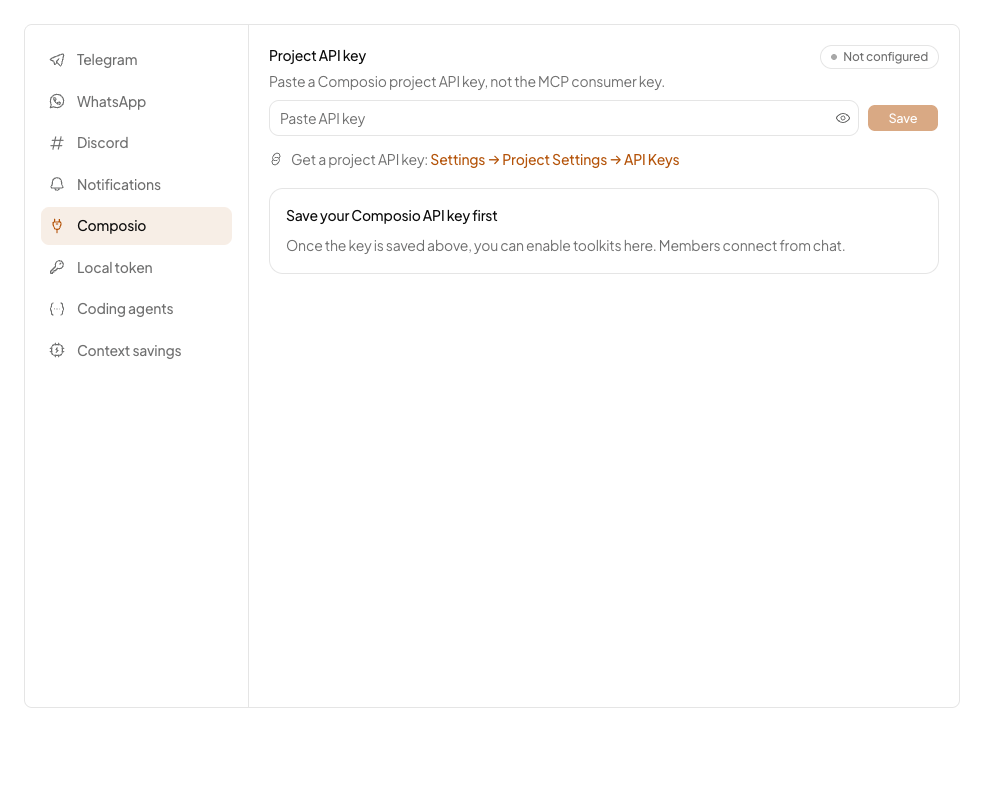
Nakama checks the key against Composio right then. A wrong key fails on the spot with the reason, so you never have to wonder whether it took. A good one turns the badge in the corner to connected.
For a container or secrets manager, keep the key outside Nakama's data directory. Mount it as a readable file and set:
COMPOSIO_API_KEY_FILE=/run/secrets/composio_api_keyYou can also set COMPOSIO_API_KEY directly. The direct value takes priority over the mounted file, and either one takes priority over a key saved through Control center → Integrations → Composio.
3. Enable the app you want. As an org admin, find the app and press Enable. This decides what your organisation is allowed to use. It does not touch anyone's account yet.
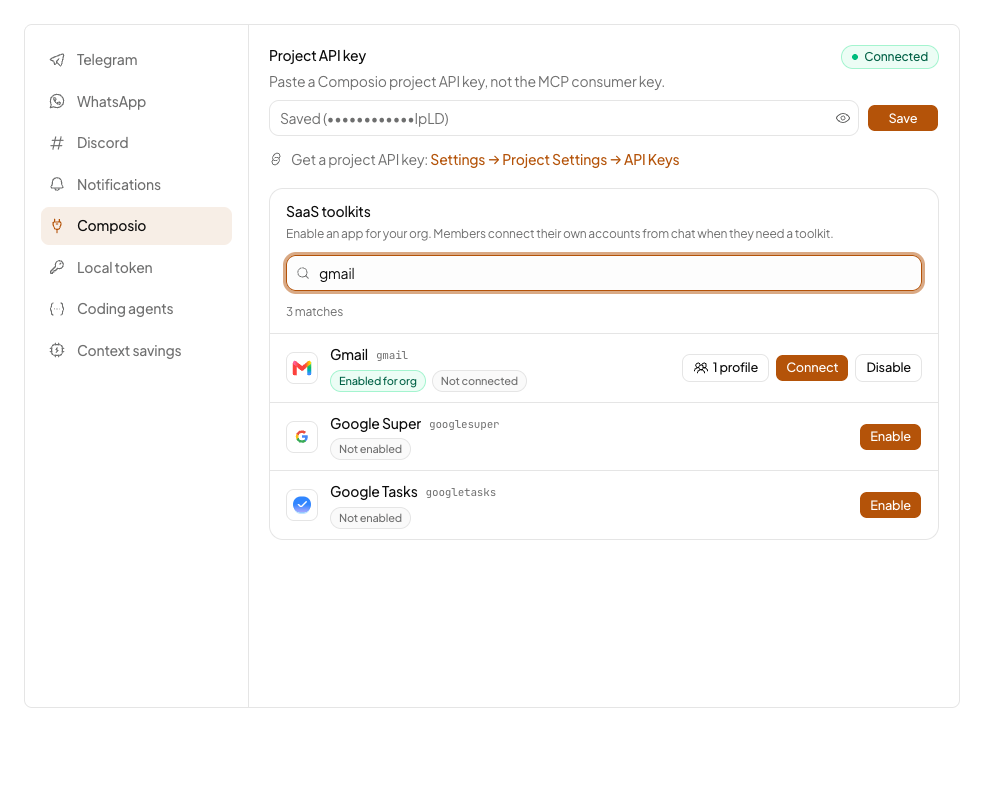
The list opens on the apps teams ask for most. If yours is not there, search for it, or press Show all 200 apps.
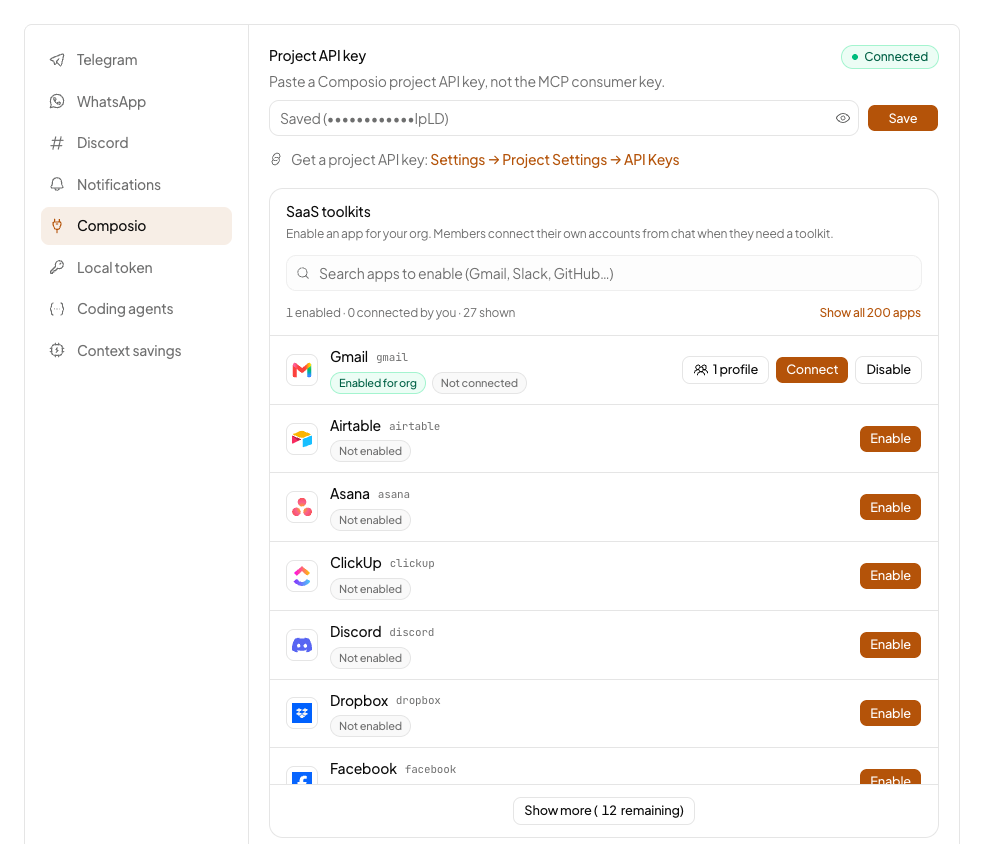
4. Connect your account. Press Connect on that app. A Composio page opens, you sign in to the app the normal way, and you land back in Nakama. The tools appear on their own, there is nothing to refresh.
5. Give the app to an agent. Enabling already gave it to your default agent, so there is nothing to do unless you want another one. Press the profiles button on the app's row and tick whichever agents should have it.
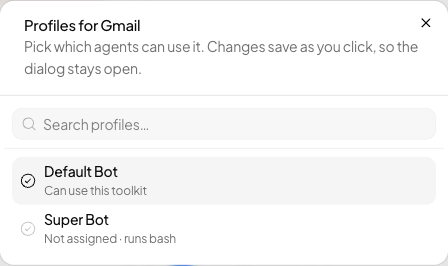
An agent can only use apps that were given to it, which is what makes it work in chat.
That is the whole setup. Ask the agent to check your inbox and it will.
When something does not look right
| What you see | What it means | What to do |
|---|---|---|
| The agent says it cannot reach your account | You are signed in to Nakama as someone who has not connected that app yet | Open Control center → Integrations → Composio and press Connect |
| The agent never mentions the app at all | The app was enabled, but not given to this agent | Press the profiles button on the app's row and tick that agent |
| Composio says "not reachable" on the Composio card | The API key is saved but Composio is not answering | Check the key, and check that the server has internet access |
| On Telegram or WhatsApp, the agent says it cannot start the sign-in | The sign-in link would point at the server's own machine, which your phone cannot open | Set Control center → Workspace → Settings → Public web URL, then restart the channel |
Who can do what
| Action | Who |
|---|---|
| Save the API key | Org admin |
| Enable or disable an app for the organisation | Org admin |
| Connect an account | Every member, for their own account |
| Assign an app to an agent | Org admin |
| See the full catalog rather than the popular apps | Org admin, via Show all apps |
| Use the app in chat | Anyone chatting, using their own connected account |
Disabling an app for the organisation stops it for everybody at once. Disconnecting your own account stops it for you only, and leaves your colleagues working.
How it works underneath
For anyone who wants the mechanics rather than the steps.
- Nakama talks to Composio through the
@composio/coreSDK, and the agent reaches the tools over an MCP session that Composio hosts. - An API key saved through Control center → Integrations → Composio is stored as
api_keyin~/.nakama/composio/config.inion the server.COMPOSIO_API_KEYandCOMPOSIO_API_KEY_FILEkeep it outside that file. - Nakama creates the Composio auth config for a toolkit the first time somebody connects it, which is why the Google Cloud project and consent screen walkthrough in Composio's own documentation does not apply here.
- An agent never sees hundreds of tools at once. It gets two,
composio__search_actionsto find an action andcomposio__invoke_actionto run it, so the prompt stays the same size no matter how large the toolkit is. When an account is not connected it also getscomposio__connect_account, which produces a sign-in link the agent can paste into the reply. - Each member's connection lives in
composio_user_connections, and the Composio user id isnakama:user:{userId}. Web chat resolves tools against the connection of the person talking. On Telegram, WhatsApp, Discord, and CLI, it uses the connection of the earliest org admin. - The sign-in callback (
/v1/composio/oauth/callback) is public, because Composio redirects a browser there with no Nakama session. - Web chat takes the callback address from the browser. The Telegram, WhatsApp, Discord and CLI bridges cannot, so they read
web_public_urlfrom~/.nakama/config.ini(orNAKAMA_WEB_PUBLIC_URL). A loopback address is refused rather than sent to a phone that cannot open it. - Automations that run without a person attached do not resolve personal Composio tools.
- Everything is scoped to one organisation. Enable the app and assign the agent in the same org your Telegram
/orgselection points at. GET /healthreports whether a key is saved, and always reportscomposioAvailable: falsebecause it runs local checks only. Reachability is onGET /v1/system/status.
If you connected apps before per-member connections existed, those connections move to the first org admin on startup. Everyone else connects their own account from Control center → Integrations → Composio.
Related docs
- MCP servers, for connecting an MCP server yourself, which is separate from Composio
- Integrations, for the other Control center integrations